As the AI agents wrote more production code, I started asking a simple question: who is testing the code the AI just wrote?
Not unit tests. We still have them. Not the Playwright E2E suites. Those too. I'm talking about a new layer that sits next to everything else. One that the AI itself writes as it creates features.
This is what we built.
the problem
AI agents already write E2E tests. Playwright, cypress. The agent generates the code, executes it, passes it. Job done, right?
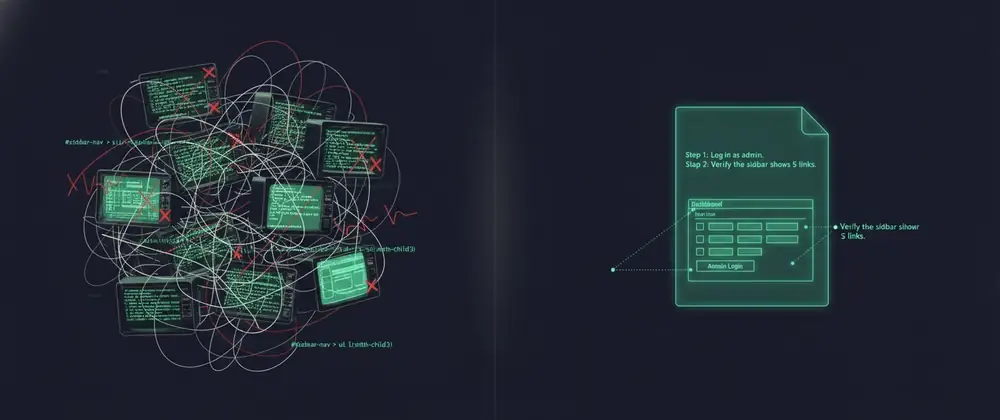
Not quite. These tests are deterministic. They claim about exact selectors, exact text, exact DOM structure. The agent who wrote page.locator('#sidebar-nav > ul > li:nth-child(3)')
has built in an assumption that the HTML will break the moment another agent (or a human) touches that component. The test did not get worse. The user interface moved forward and the test couldn't keep up.
This is the real problem: deterministic tests written by AI are still fragile tests. The AI simply writes them faster. It doesn't make them any less fragile.
What we really needed was a test that behaved like a human tester does. Look at the screen, find the login button (wherever it is), click it and see what happens. No "find element with ID btn-send
" but "look for the button that says Sign In."
The Solution: Markdown Test Files
Each regression test is a markdown file. Clear words. Structured steps. No code.
Here is a real test of our suite:
#Test 001: Login as SuperAdmin
| Field | Value |
|--------------------------|--------------------------|
| **ID** | AI-REG-001 |
| **Priority** | P0 (critical) |
| **Area** | Authentication |
| **Required** | testData/LoginCreds.json |
## Steps
### Step 1: Navigate to the app
- **Action**: Open the browser and navigate to the application URL.
- **Expected**: Since the user is not authenticated, the application redirects to /login
- **Check**: URL ends in /login
### Step 2: Verify Login Page Elements
- **Action**: Take a snapshot of the login page
- **Expected**: The login form is visible with an email entry, a password, and a Login button.
- **Verify**: All three elements are present
### Step 3: Enter the SuperAdmin email
- **Action**: Complete the email entry with the test data email
- **Expected**: Email appears in the input field
### Step 4: Enter SuperAdmin Password
- **Action**: Complete the password entry with the test data password
- **Expected**: Password field displays masked characters
### Step 5: Submit the login form
- **Action**: Click the Sign In button
- **Expected**: the page redirects to the control panel
- **Verify**: URL is now / (no longer /login)
### Step 6: Check SuperAdmin Navigation Items
- **Action**: Inspect sidebar navigation
- **Expected**: SuperAdmin-only items are visible: Manage Database, People Management, AI Models, AI Logs, AI Dashboard
- **Check**: at least 3 of the 5 SuperAdmin menu items are present
### Step 7: Verify the user's role badge
- **Action**: Click on the user's avatar to open the drop-down menu
- **Expected**: Dropdown shows full name, email, and role badge
- **Check**: Role badge text contains "SUPERADMIN"
No selectors. No XPath. No page.locator('#email entry')
. Just descriptions of what a human would do and see.
How to run: agent-browser
The execution engine is browser-agent, an open source CLI from Vercel built for AI agents to automate browsers.
An AI agent reads the markdown file and then translates each step into browser-agent commands:
#Step 1: Browse
Open browser-agent "https://myapp.azurestaticapps.net/"
browser-agent wait --load redidle
# Step 2: Find out what's on the page (accessibility snapshot)
agent browser snapshot -i
# Returns: @e1 "Login" header, @e2 "Email" text box, @e3 "Password" text box, @e4 "Login" button
#Step 3: Complete the email
browser-agent complete @e2 "[email protected]"
#Step 4: Fill in the password
agent-navigator complete @e3 "secretpas